AGENTS: How do I sync talent profile data from Spotlight?
This article explains how Tagmin users can automatically import and update talent profile data from Spotlight. We will cover what data is synchronized, how to manage your preferences, and how to invite talent to manage their own profiles.
How Automatic Spotlight Updates Work
Tagmin is designed to make your life easier by automatically pulling talent data from Spotlight. This feature creates new client profiles and keeps existing ones current whenever updates are made in Spotlight. The following information is synced automatically:
Headshots
Skills and personal information
Measurements
Location data and nationalities
How to Manage Spotlight Preferences
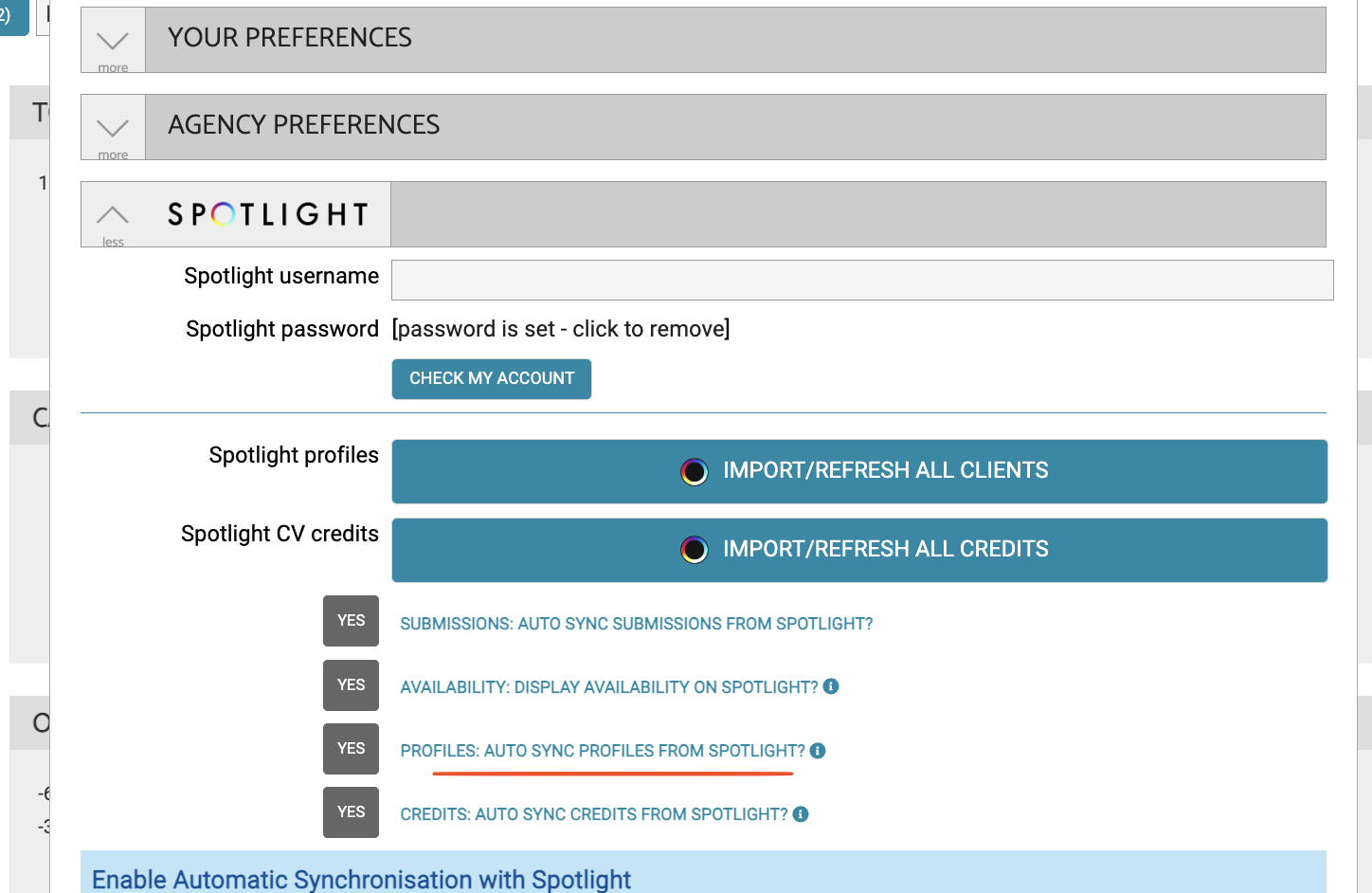
If you need to adjust your settings or turn off the automatic sync, follow these steps:
Navigate to the Spotlight menu.
Select Preferences.
Toggle the automatic feature settings as needed.
How to Invite Talent to the Tagmin App
Once a client is in your Tagmin system, you can encourage them to maintain their own data via the Tagmin Talent App or browser portal.
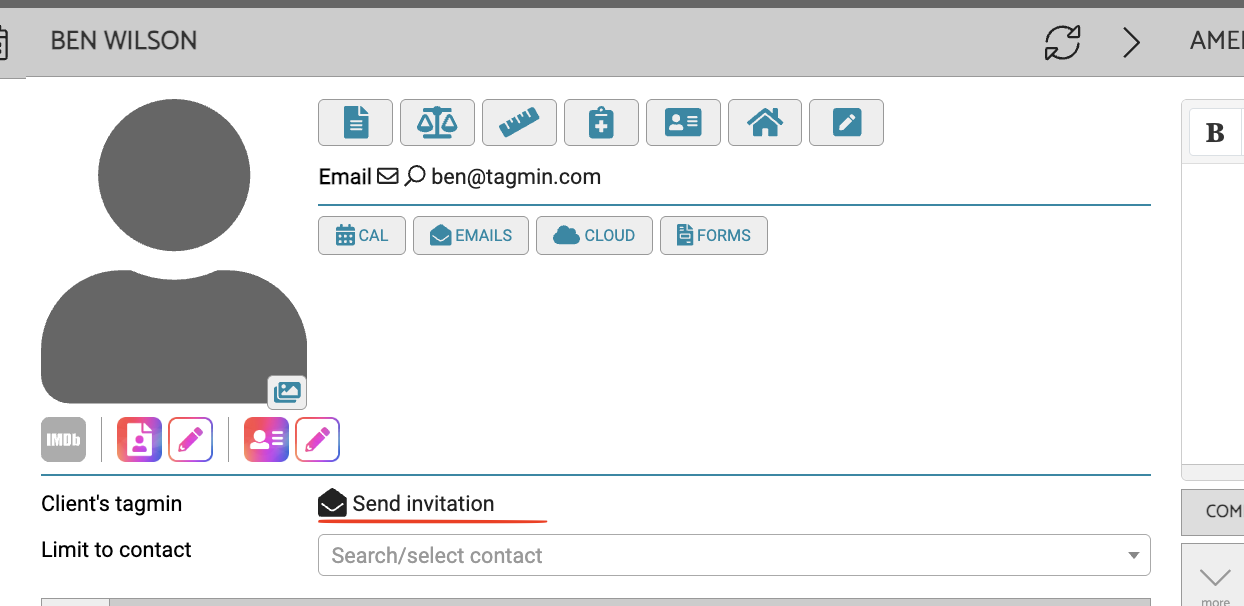
Locate the client in your client list.
Enter their email address in the box labeled email.
Click the send invitation button.
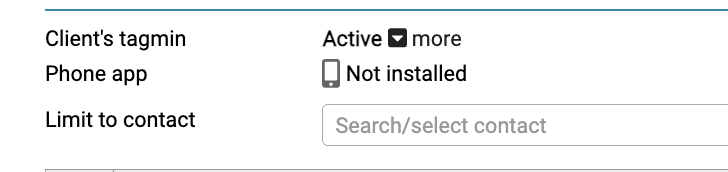
If the client has already registered their account, you will see active text displayed instead of the invitation button.
How to Assign Staff Notifications
You can use the representation tab on a client's page to ensure the right team members stay informed. You can select up to four users to receive specific updates about a client, including:
Self-tape upload notifications
Pencil/availability updates
General booking-related notifications
Troubleshooting and Bulk Imports
Checking Credentials
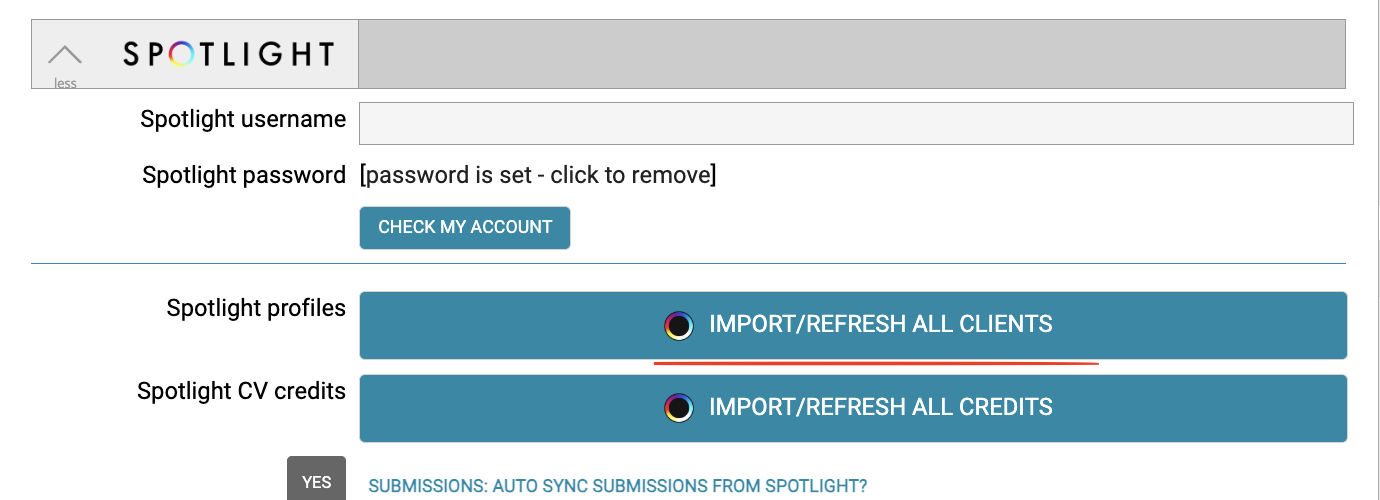
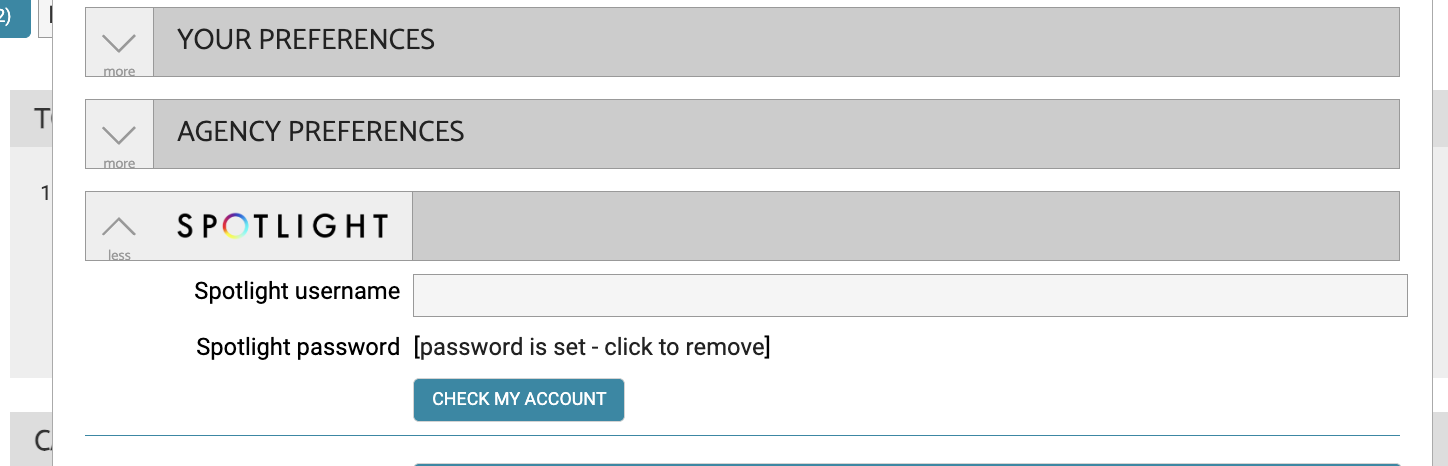
If talent profiles stop importing automatically, it is usually due to expired or incorrect credentials. To fix this:
Go to Spotlight - Preferences.
Verify your spotlight credentials.
Click the validation button to confirm the details are correct.
Filling Gaps with Bulk Import
If your credentials were incorrect for a period of time, you may have missing data. You can catch up by using the bulk import tool:
Click the import clients button.
Wait for the process to complete. This will pull in any missing talent and apply missed updates to existing profiles.