
Performer Support: How do I Navigate the Spotlight iOS App?
This article explains how performers can utilize the mobile app and all of its available features. The app makes it easy to submit to projects on the Job Feed, respond to tape requests, manage media, and make updates to your profile.
Getting Started
The Talent mobile app is available as a free download for iPhone users. In order to use all of the features the mobile app has to offer, first make sure your phone is updated to the latest iOS 16 version or higher. You can download the Spotlight App by visiting the App Store.
Key Features Overview
The mobile app makes it easy to access the most important features of your Spotlight membership. On the app you are able to submit to projects on the Job Feed, make changes to your profile and media on your profile, and make updates to your account settings.
Jobs Feed
How to Submit to Projects on the Jobs Feed
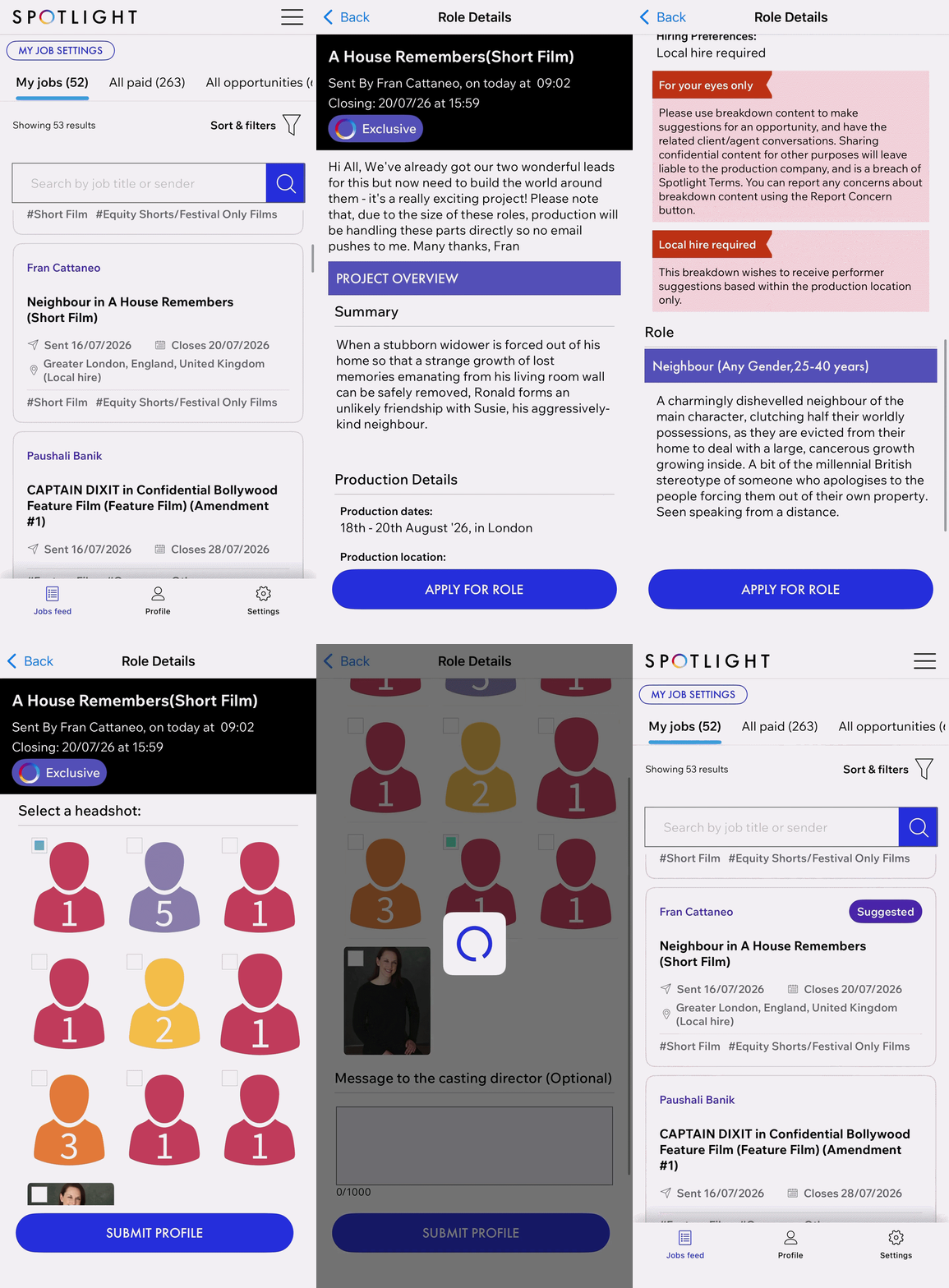
When logging into the mobile app, you will automatically land on the Jobs Feed page, where you can scroll down to explore and access all the projects available for submission.
After you have located the project you want to submit to, tap on it. On the next page, you can review all the project's details before tapping on Apply for Role to proceed with the submission.
You will immediately be prompted to select the media you would like to send from your media. Choose the media you wish to submit for the project, including photos and other relevant content. Please note, content must be uploaded to your in-app media library in order to use for submission.
There is an option to include a message for the casting director. If interested, enter a message into the provided field.
Review all details to make sure everything is correct before selecting the Submit Profile button.
How to Respond to a Request
The Tape Requests section is your hub for managing communications from casting. Tape Requests live under the Jobs Feed section of the app. You can access this by scrolling to the last of the tabs across the top, beneath the "My Job Settings" option. You will see a list of all of your requests here. To respond to one:
Tap on it to open.
You can add media to your request either from your media bank or uploaded directly from your phone.
Once you have responded a green “Sent” icon will appear on the request.
You are also able to see all previous requests by utilizing the filters to narrow down what you are looking for.
Profile
Once you have selected the Profile tab from the navigation bar across the bottom you will have the option to edit various sections of your profile.
Details- Share and view your public profile, and update profile information. Profile information you can update includes:
General Info: Here you are able to update general details such as age, height, ethnicity, measurements, appearance, etc.
Connect to Instagram: Allows you to link your Spotlight profile to your Instagram to increase visibility.
Appearance: Here you are able to update eye color, hair color, hair length, make up shades, measurements and sizes and additional details pertaining to your physical appearance.
Skills: This section allows you to add updates to your skillset. It includes languages, accents & dialects, music & dance, performance, and more.
Training & Highlights: Include details about your completed training and/or additional information you would like to highlight about your experience.
Contact- Remove, add, and rearrange the order of your representation.
Adding Representation
You can add new representation by selecting the “+Add Representation” option. This will lead to a dropdown where you can type in the name of the agent.
Tap the name of the agency you would like to select from the dropdown and select “Add”.
The agency will appear in your list of representation.
If the agency is not listed you are able to select “My agency is not on the list” This will ask for agency details. Your agent must contact Spotlight directly in order to register.
Re-arranging Representation
Utilize the arrows listed to the right of each agent to move them up or down. This will dictate the order in which they appear on your profile.
Deleting Representation
To remove an agent from your profile tap on the trash can icon to the right of the arrows.
Media- Upload new media and manage existing media
Uploading Media
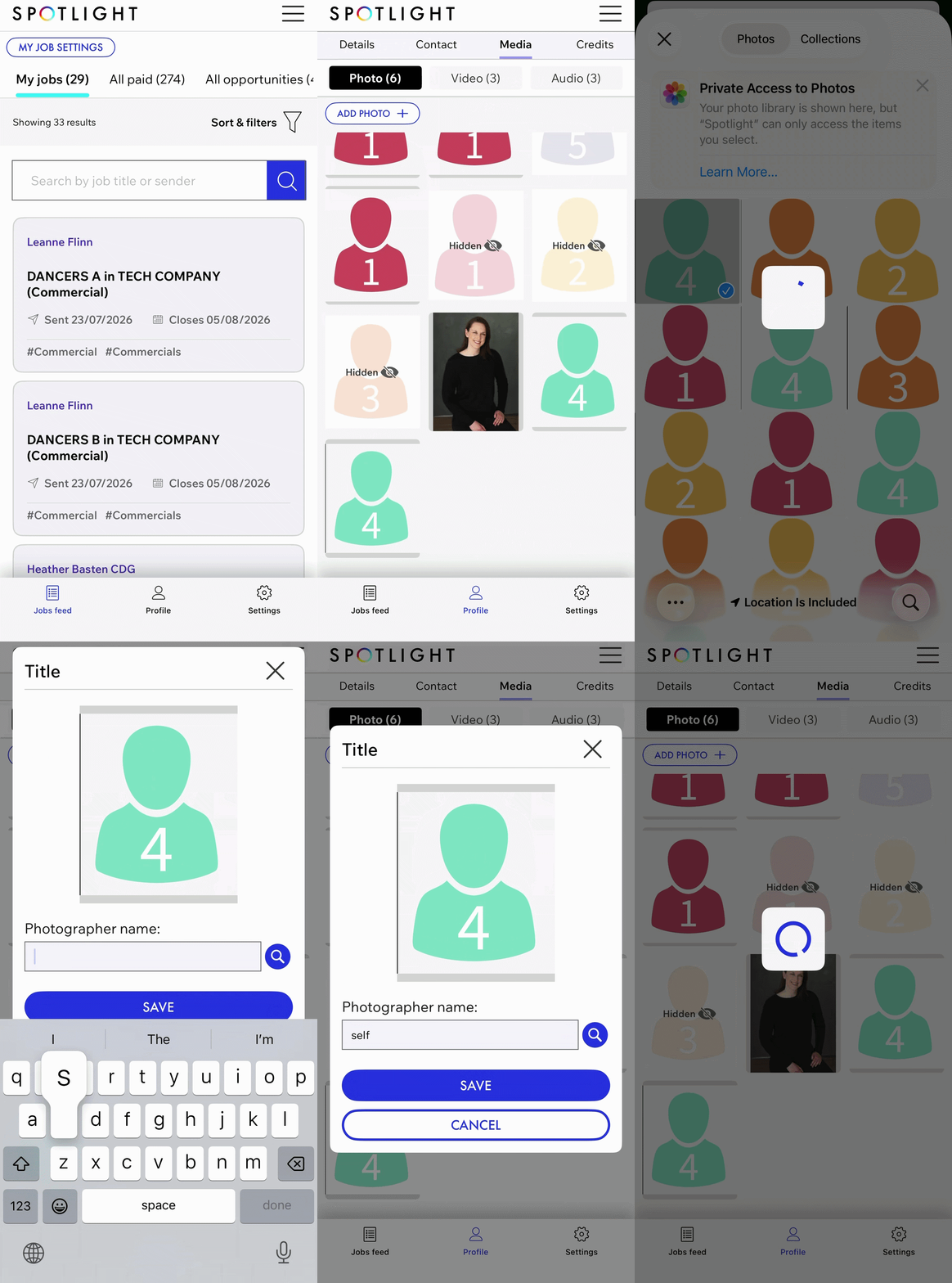
Tap on Media from the categories across the top of the profile.
Tap on the type of media you would like to upload: Photo, Video, or Audio.
Tap on the Add+ icon. This will open your photo library to allow you to make your selection.
For photos only, you will be prompted to enter the photographer’s name before saving. Enter the photographer's name and select Save.
Deleting Media
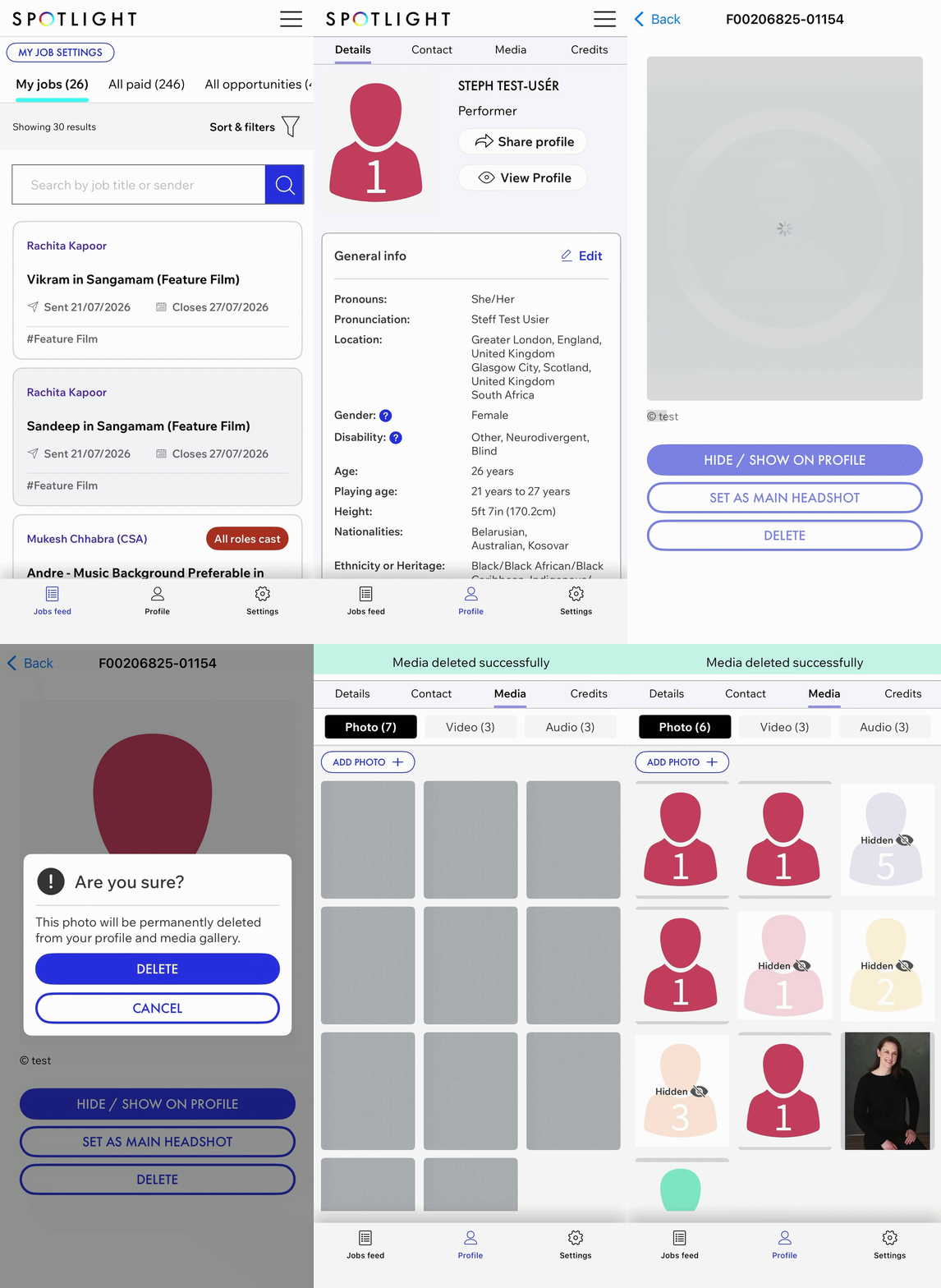
Tap on Media from the categories across the top of the profile.
Tap on the type of media you would like to delete: Photo, Video, or Audio.
Tap the media file you would like to delete.
Tap Delete.
You will be prompted to confirm you are certain you would like to proceed. Tap Delete again.
A message bar will appear across the top of the app confirming deletion.
Managing Media
Tap on Media from the categories across the top of the profile.
Tap on the type of media you would like to update: Photo, Video, or Audio.
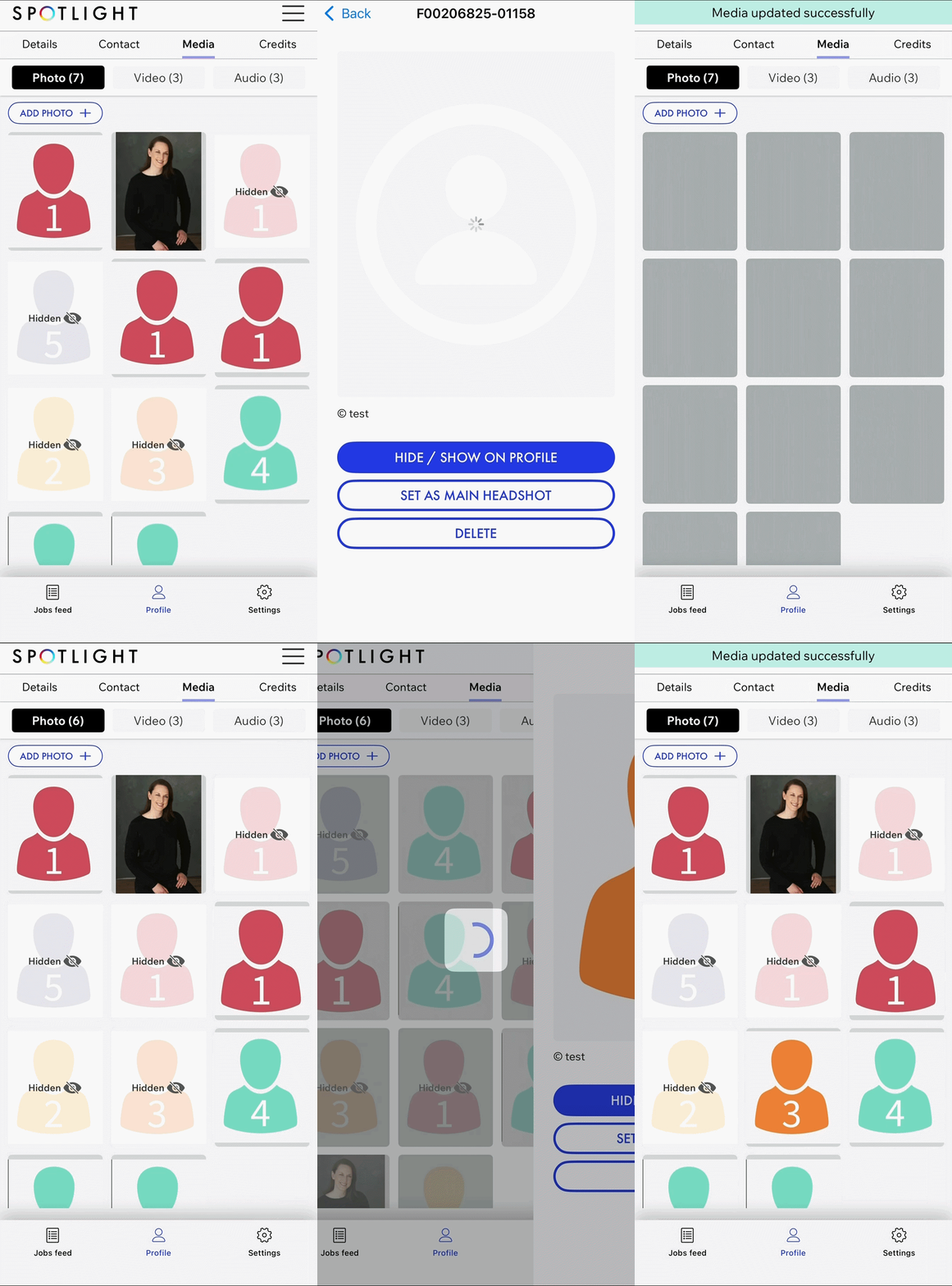
Tap on “Hide/Show on Profile” in order to hide it on your profile. Once selected the photo will appear greyed out with an icon labeled “Hidden” over the media.
In order to unhide tap on the media again and select “Hide/Show on Profile”. You will notice the photo will no longer appear greyed out in your library. It is now visible on your profile.
Updating Headshot
Tap on the photo you would like to make your headshot.
Select “Set as Main Headshot”.
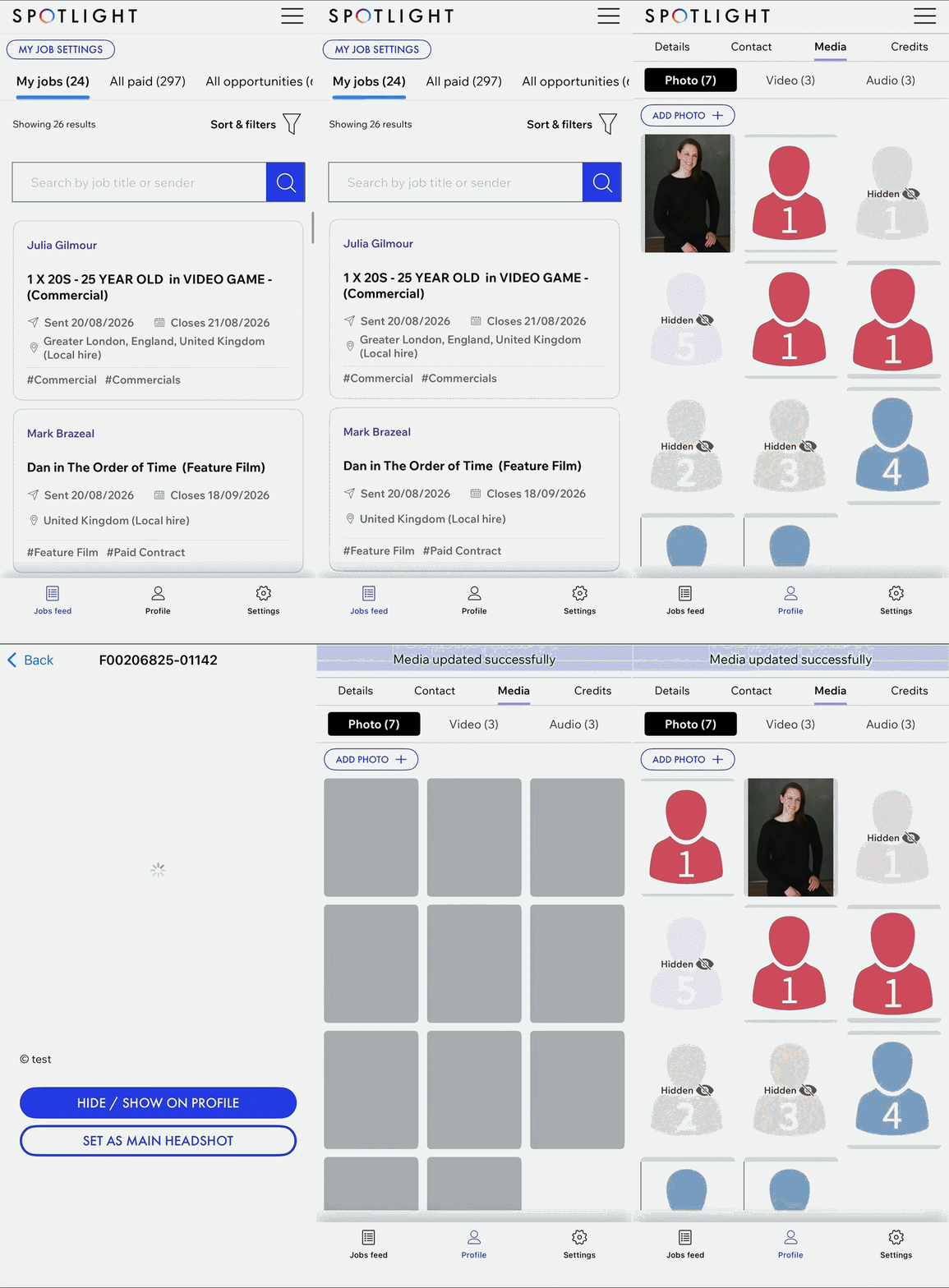
Credits- Updated and rearrange credits and headers
Adding New Credits
Tap on Credits along the banner at the top of the page
Select +Add Credit
Complete the requested details and select Add Credit at the bottom of the page
Managing Existing Credits
Tap on Credits along the banner at the top of the page.
Select the pencil on the right hand side.
This will lead to a few different editing options:
Tap on the pencil to the right of the credit to make updates to the credit details.
Tap on the trash can in order to delete the credit.
Utilize the up and down arrows to rearrange.
Managing Headings
Tap on “Manage Headers” at the top of the screen.
Tap on the box to the left of the category to select/deselect. If highlighted green it means it is selected.
Utilize the arrows to rearrange the order of the categories.
You can choose to remove headings by selecting the “Remove Headings” option at the top of the page. This will make credits appear as a single list.
Settings
You can use the Settings icon in the lower right-hand corner to view and make changes to your account as needed. The three available sections are:
Account Settings: Navigate here to update personal details such as name, email address, home address, and phone number.
Notification Settings: Set your notification preferences. Push notifications will appear on your home screen.
My Job Feed Settings: Edit your Preferred Role Details, Contract Types, Production Types, and Production Countries. Please note that any changes made to your job settings will be automatically utilized to determine your filters on the Job Feed.
Manage App Permissions- Will navigate to the Notification Settings in your phone so you can customize how you would like to receive notifications from Spotlight on your device.
Overflow Menu
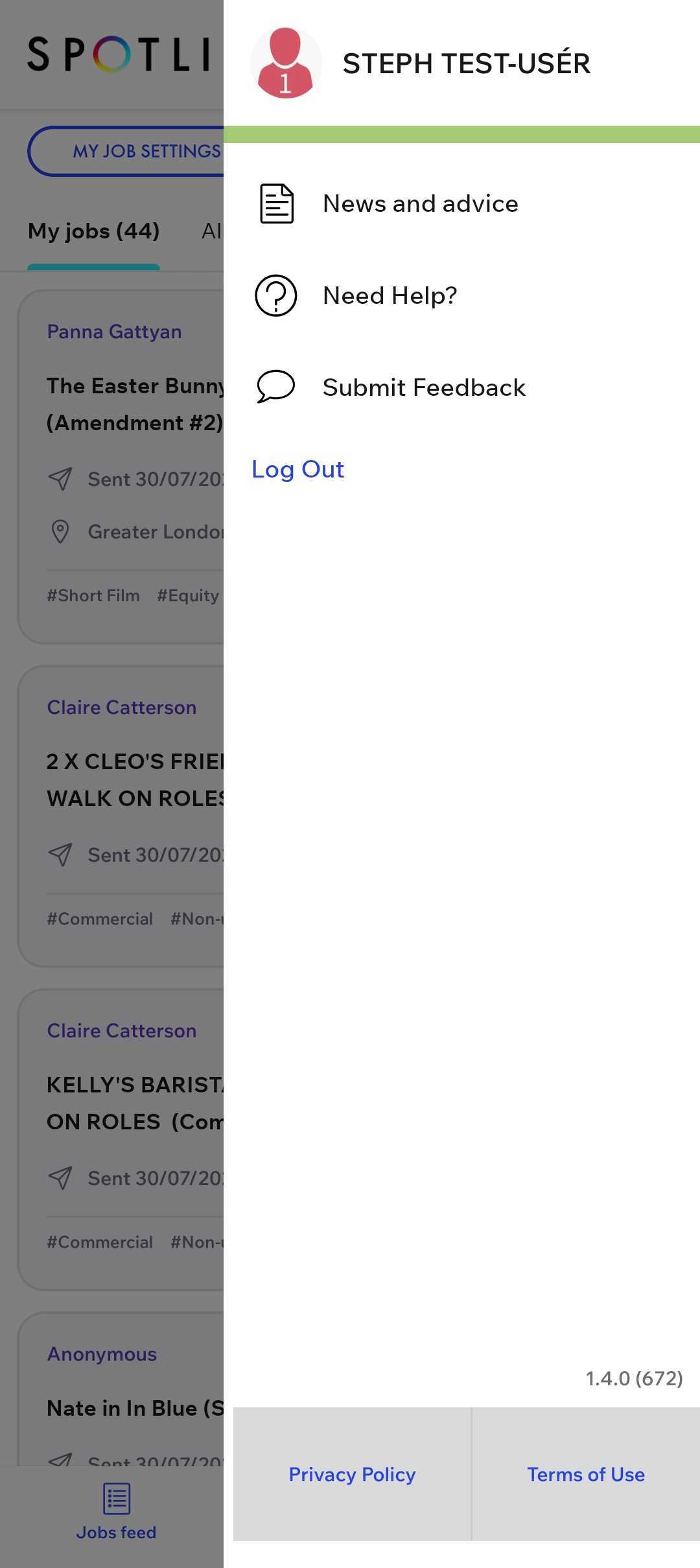
News and Advice- Offers the latest industry news, practical advice on the business of performing, wellbeing articles, and exclusive interviews with top casting directors.
Updates- Provides a quick look at alerts of updates to the app as well as new notifications.
Need Help- Leads to our Help Centre library to provide step-by-step instructions to any questions you might have.
Submit Feedback- Your feedback matters! Let us know how we can improve your experience.
Log Out- Log out of the mobile app. Keep in the mind you will be required to manually login again once you have logged out.
Privacy Policy- View our Privacy Policy
Terms of Use- View our Terms of Use.
Frequently Asked Questions
Can I make changes after I submit the request?
Once a request has been submitted updates cannot be made. In order to change your response or update the details provided, reach out to the casting director or your representative.
Do changes made on the profile in the iOS app reflect on the Web Browser?
Any modifications made to your profile through the mobile app will be mirrored on the web browser version