Add a Client
To add a new client to Tagmin, go to the Clients tab. On the right-hand side of the page, you will see the Add Client form.
Follow the steps below depending on whether your client has a Spotlight profile:
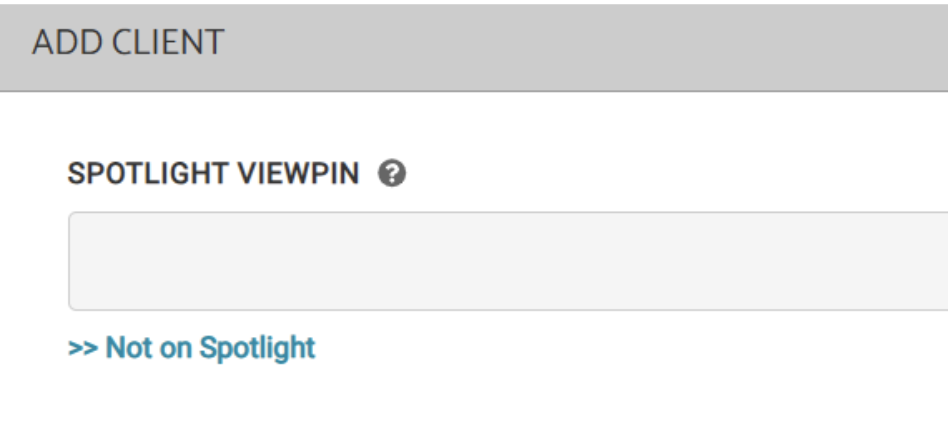
Adding a Client Who is on Spotlight:
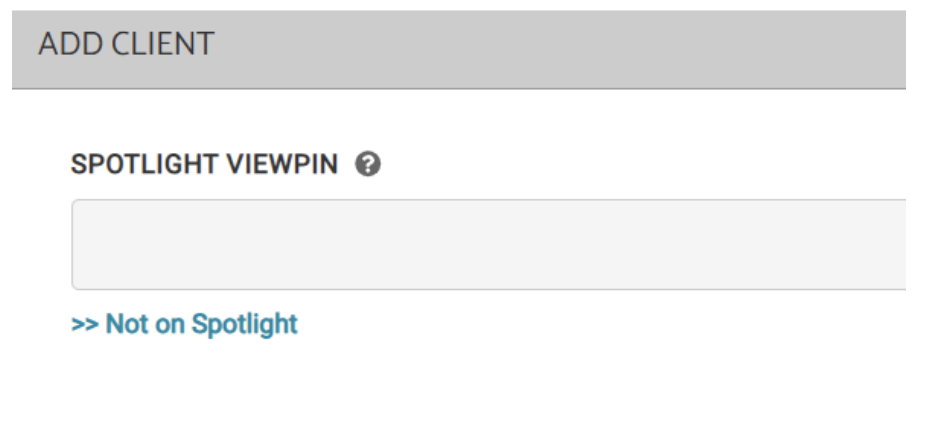
Enter the client’s Spotlight View PIN into the form. Tagmin will automatically import their information directly from their Spotlight profile.

Complete any remaining basic details (such as gender and email address).
Click Add Client.
Adding a Client Who is Not on Spotlight:
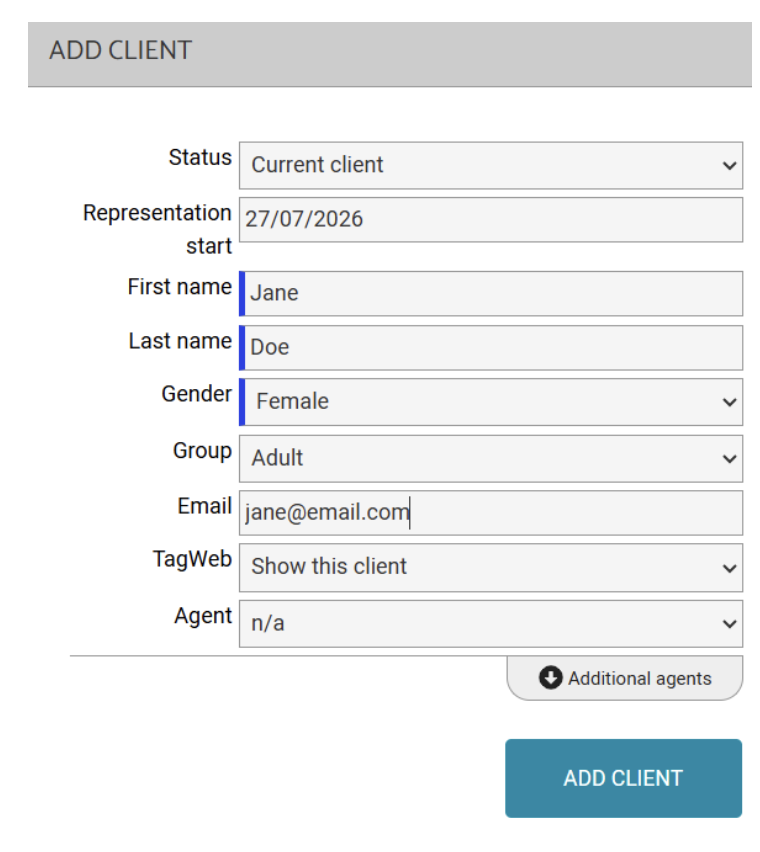
Click Not on Spotlight.
Manually enter the client's basic information (such as name, gender, and email address).
Click Add Client.
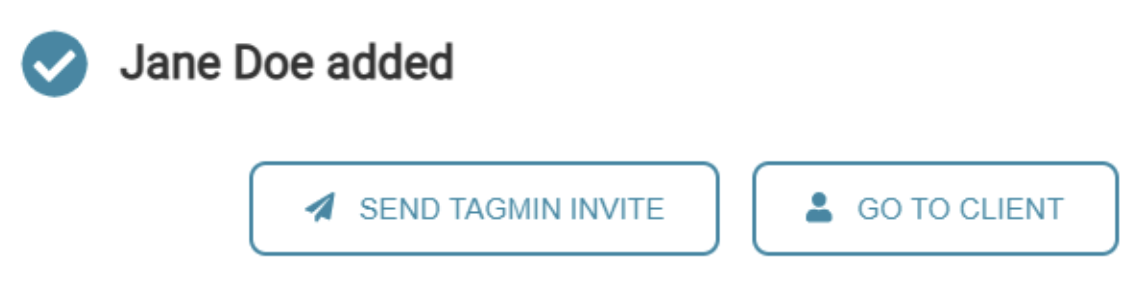
Next Steps:
Once the client is added, you can choose to:
Send an invitation: Invite the client to set up their own Talent Login.
Manage profile: Go directly to their profile to view or add more details yourself.