
Add a Meeting (Casting)
To add a meeting for a client, go to their profile, select the Meetings tab, and click the + (Add) button:

Step 1: Import Existing Project Data (Optional)
If the project already has an existing booking entry for this client (such as a Submission):
Use the Import client booking search field at the top of the form.
Select the relevant entry to automatically pull existing project information into the meeting form.

Step 2: Fill in the Meeting Details
Complete the meeting fields with all available information:
Core Details: Enter the Client, Project Title, Role, Where, and When the meeting takes place.
Overall Dates: Add key project dates if known.
Link Contacts (The "With" Section):
Link important contacts - such as the Casting Director, Director, or Producer - so the meeting automatically appears on their Tagmin pages.
If a Casting Director was already was added during the Submission stage, this will automatically link. If not, you can click the Link (chain icon), search for the contact, and add them.
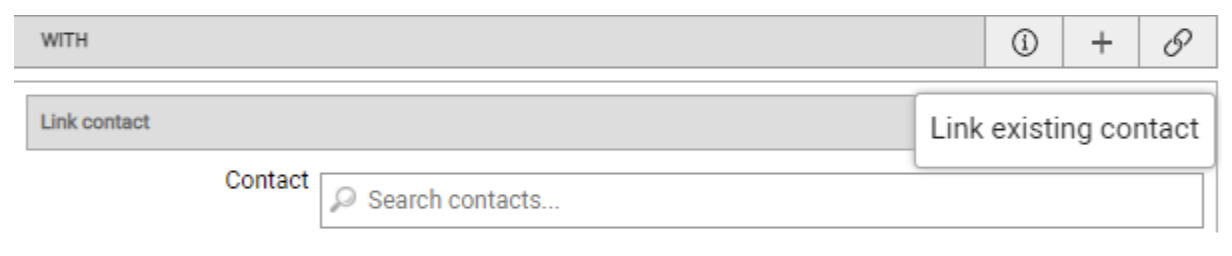
You can also mark who will be present during the meeting by ticking To meet:
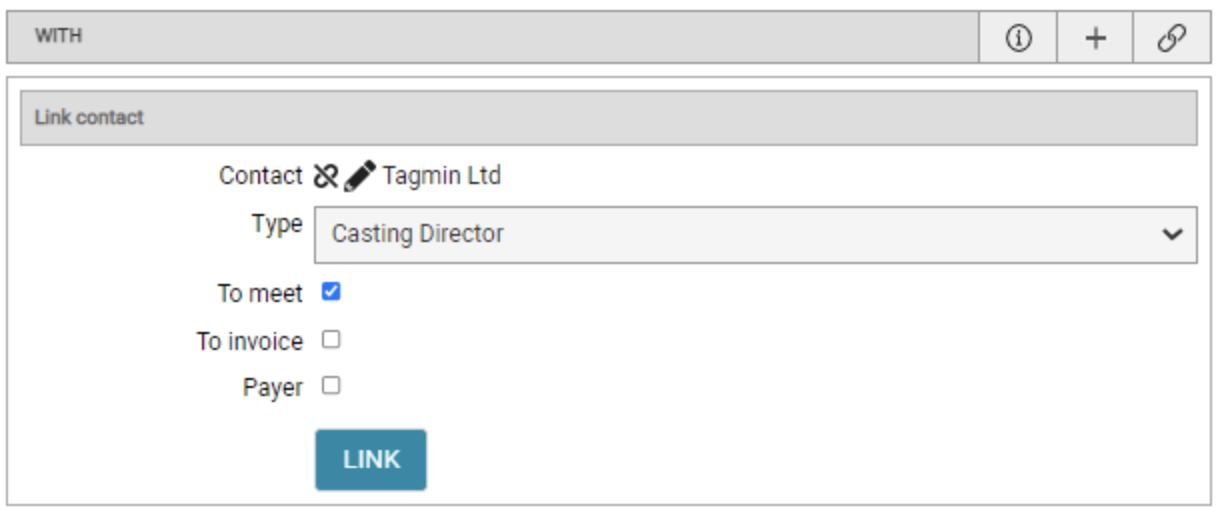
HERE
Then click Link to connect the contact. If you can't find the contact in the search, you may need to add it to your database. You create a new contact and link it by clicking on the '+'-button and then filling in the relevant fields.
Fill in any other relevant information and then click on Add meeting to save.
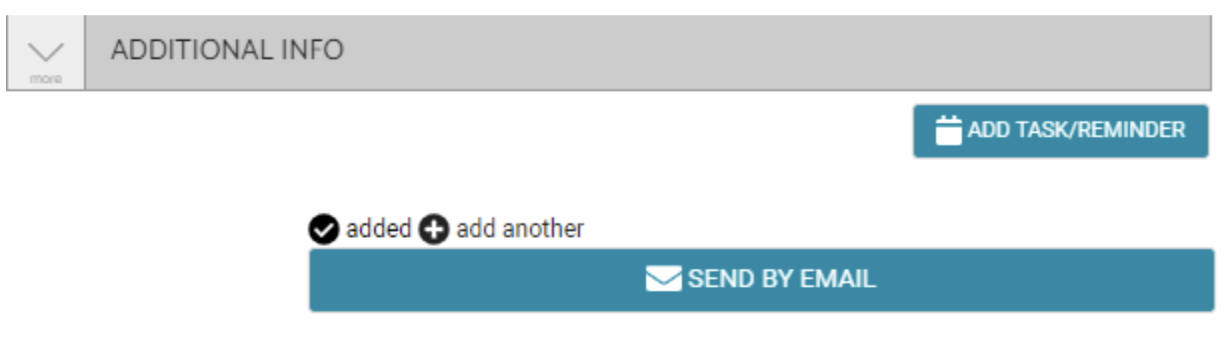
Once saved you can click on the Send by email button to inform your client of the meeting.
Please note that if you leave the meeting and open it again, this button will appear at the top of the form:
The meeting will be listed in the Coming up section on the client's profile, on their calendar and you can also access it via the Meetings-Tab in the middle column. If you click on it in any of these areas the meeting form will open again and you can amend or add information if necessary.