
Add a Direct Offer
Offers are often created by converting an existing booking (like a Meeting or Self-tape) via its Status tab:
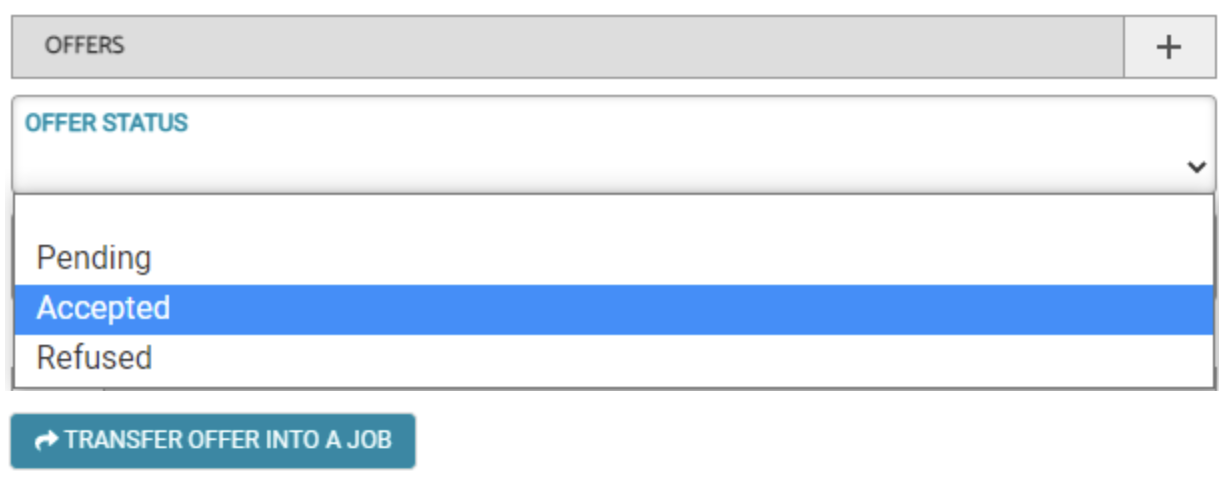
You can also log a direct job offer manually.
Step 1: Create the Offer
Go to the Clients tab.
In the middle column, select the Offer tab.
Click the + (plus) icon.

Tip: If the job details already exist in another booking (such as an Availability Check), use Import client booking to automatically pull that data into your new offer.

Step 2: Fill in the Offer Details
Complete the meeting fields with all available information:
Core Details: Enter the CLIENT, PROJECT TITLE, ROLE, WITH and of course DATES.
Linked Contacts (The "With" Section):
Use the WITH section to link the job to key contacts associated with the project (e.g., Casting Director, Director, Producer). Linking contacts here ensures the offer automatically appears on their respective Tagmin profile pages as well.
Once filled in click on add offer at the bottom:
The offer will now show in the the Coming up section:

And will show on the client's calendar as well as the middle column under the Offer tab.