Casting: How Do I Navigate and Utilise the Latest Profile Enhancements?
This article provides an overview for casting directors on how to navigate and utilise the latest profile enhancements, including display modes, pronoun settings, and updated media and skills sections. We want to ensure you can efficiently view and manage performers presentations with these new tools. The new profile view will be available on Monday 20 April.
ARTICLE CONTENTS
Appearance Settings
How do I switch between Dark and Light mode?
You can now easily toggle your viewing experience between dark and light mode. Here is how it works:
Select your preferred mode via the toggle switch in your account settings.
The system defaults to dark mode, but once you make a change, your preference is saved.
The next time you log in, the platform will automatically load your chosen mode.
Pronouns and Name Pronunciation
We’ve introduced an optional field to help you address performers correctly. This information appears right next to the performer’s name on their individual profile page.
Highlights Section
The "About Me" section is now called Highlights. It is designed to showcase reviews, awards, and current productions. If the text is longer, a More button will appear for you to read the rest.
Credits Section
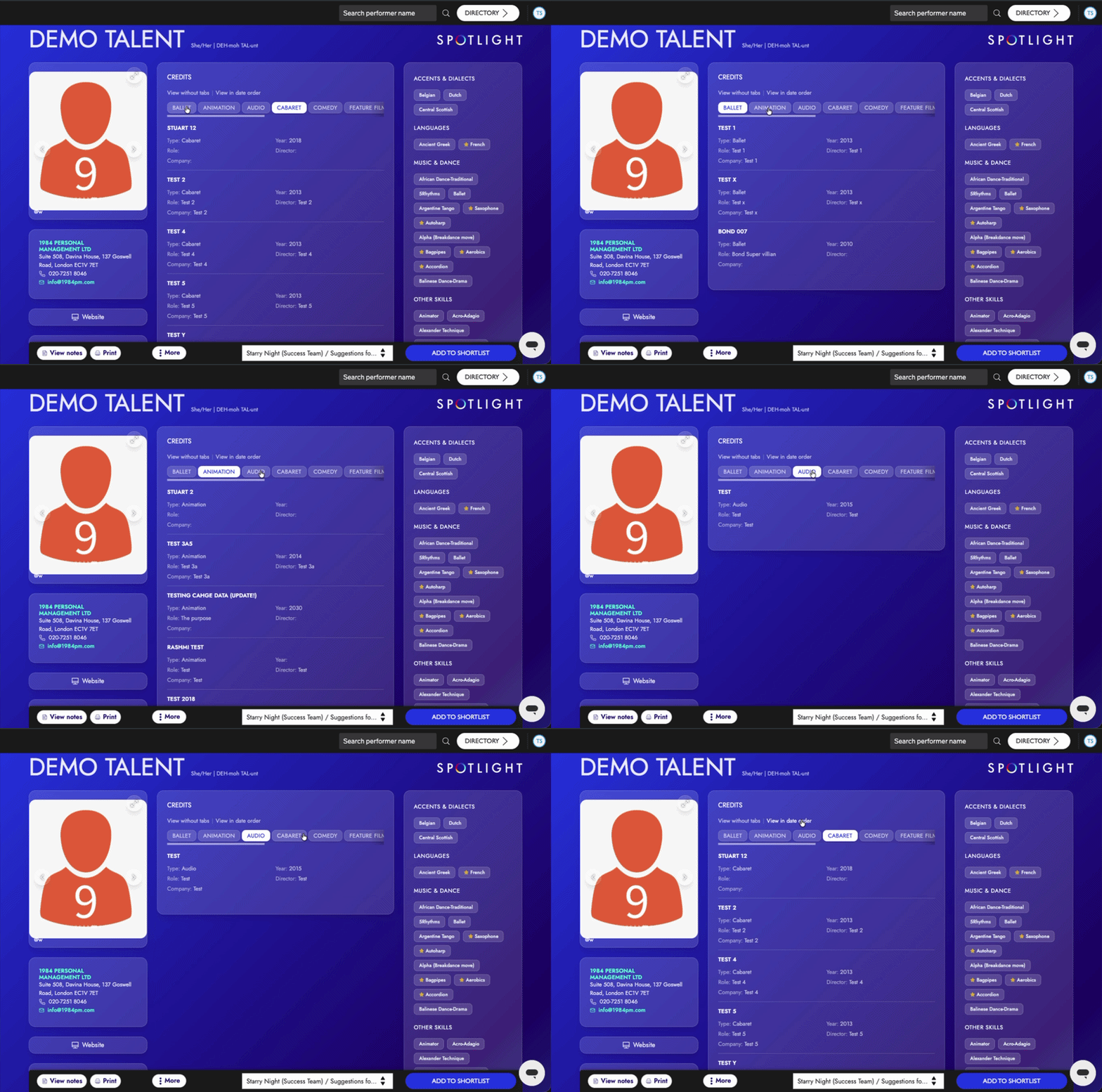
The "Credits" now displays each heading as an individual section for clearer understanding.
Media Section Updates
The media section has been refreshed to create a more seamless experience when viewing a performer’s work.
Photos
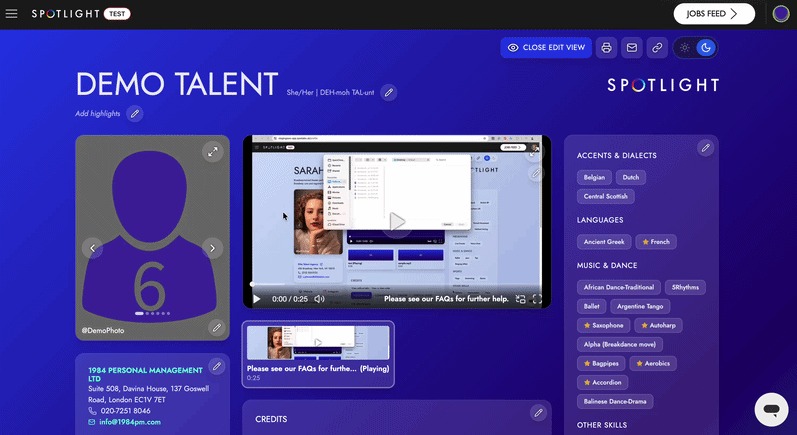
Photos now scroll through without automatically opening a full-screen overlay.
To see a larger version, simply click the image to expand it.
A small gallery view is now visible underneath the main photo for easier navigation.
Videos and Audio
Videos and audio clips are now grouped into one unified media section.
The first six clips are displayed prominently, with a Show More option available for additional media.
Media will continue to play even as you scroll through the rest of the profile.
You can utilise a grid view (3x3x2 layout), full-screen mode, picture-in-picture, and volume controls to suit your preference.
Skills Section
While the actual skill data remains the same, the visual layout has been updated for better clarity.
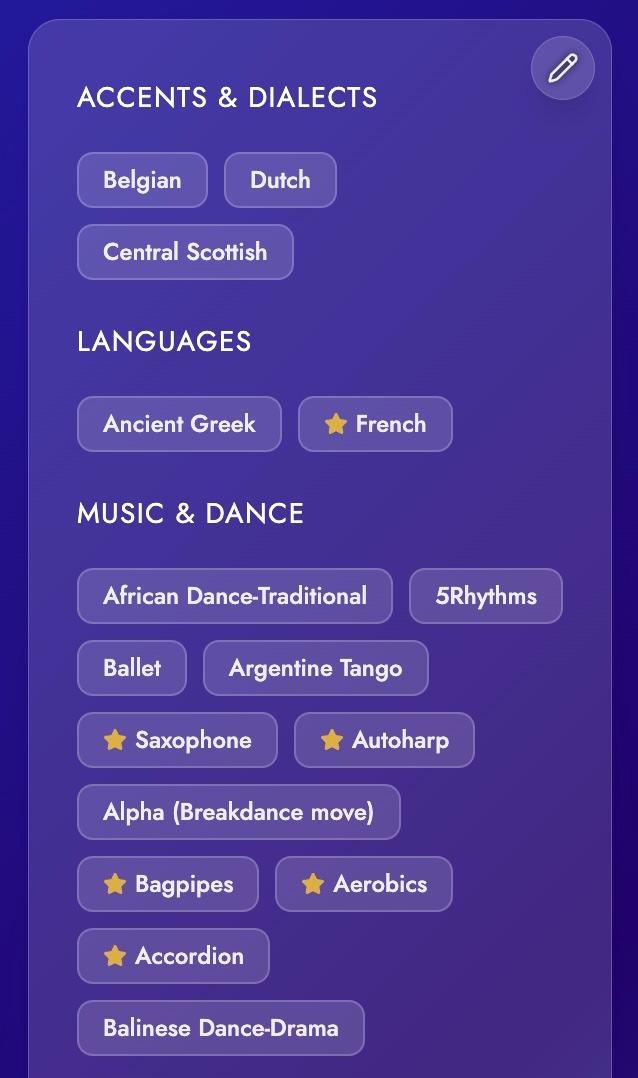
Skills are now displayed as clean labels.
A star symbol next to a skill indicates a high level of proficiency or native ability.