
Performer Support: How do I upload and manage the media on my profile?
This article explains how to add video showreels and audio clips to your Spotlight profile. Whether you are adding new media or updating old files, this guide will help you navigate the Media area to showcase your best work to casting directors.
ARTICLE CONTENTS
How to Upload Media to Your Profile
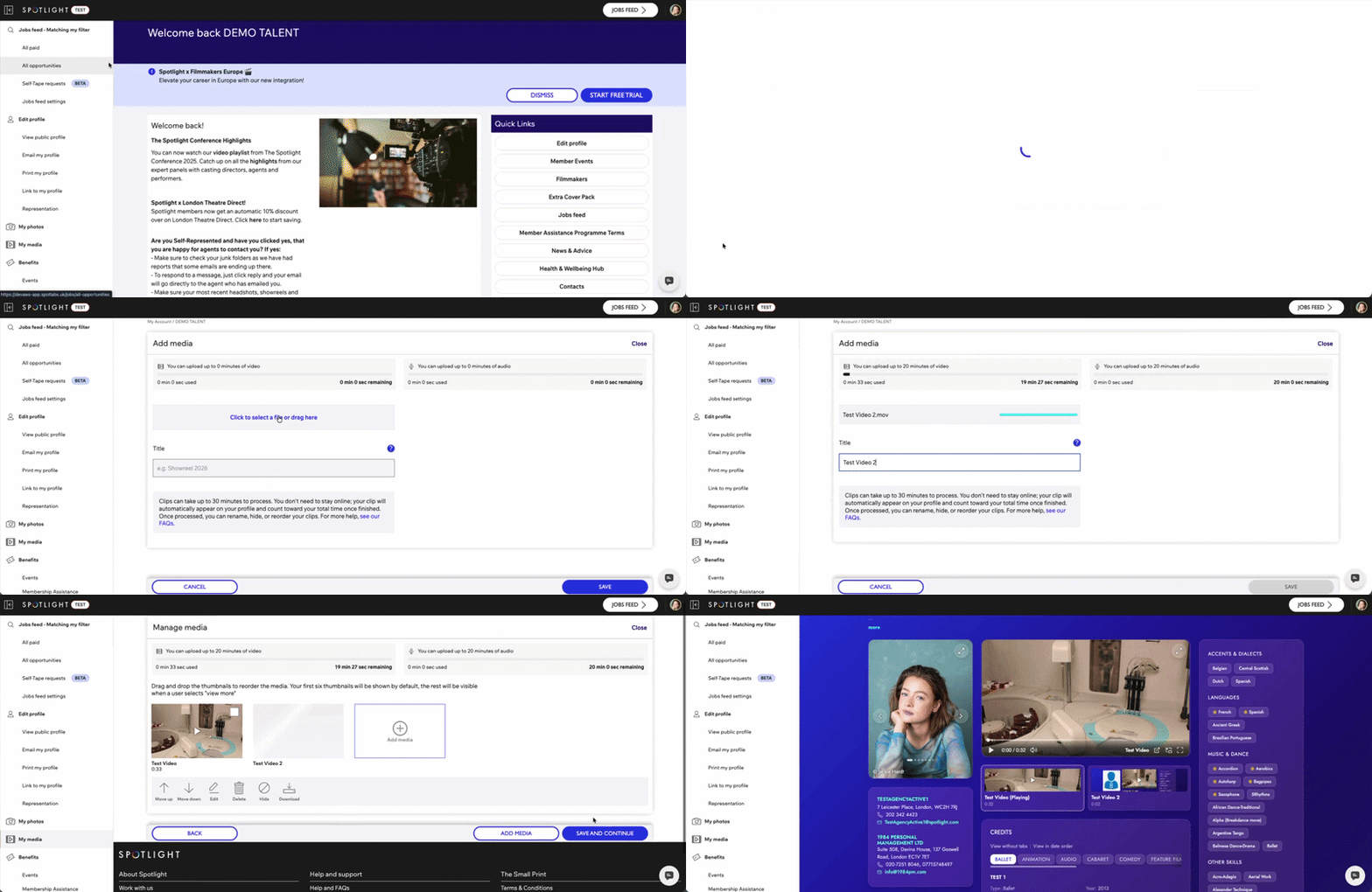
Log in to your profile and select My Media from the panel on the left hand-side.
From your media page, enter the gallery and select "Add Media".
Choose the media file you want to upload from your computer or device.
Enter a title for your video or audio reel and select "Save".
Once the video is uploaded you will see a "Processing" message on the newly uploaded media. Select "Save and Continue" to view the video on your profile.
How to Delete Media from Your Profile
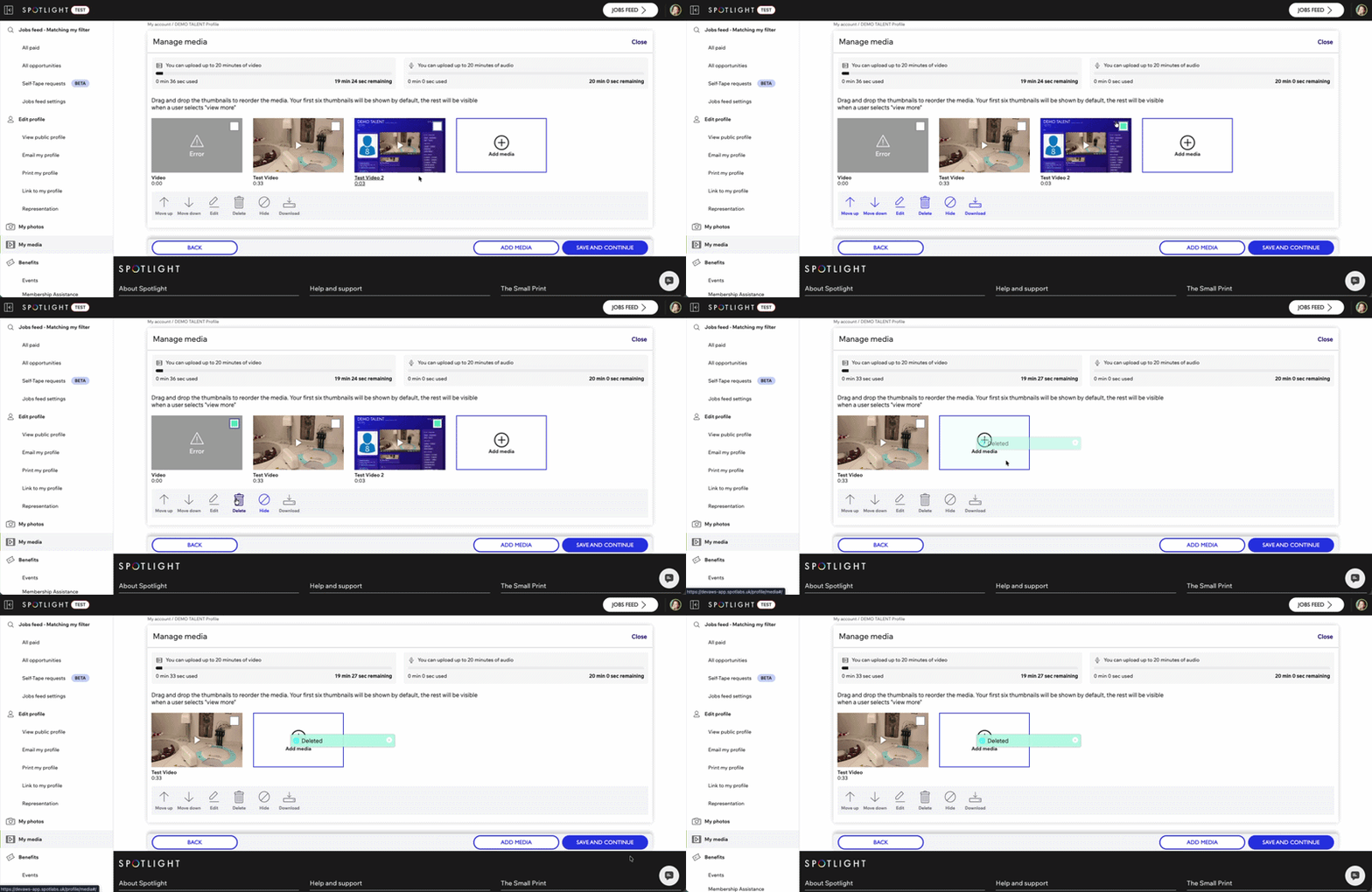
Select the boxes of the media you would like to delete.
Select the trash can icon in the tool bar.
A message will appear confirming you would like to delete the media. Select "Delete".
A green banner will appear with the phrase "Deleted".
* Important to note: Once media is deleted it cannot be retrieved.
How to Rearrange Media on Your Profile
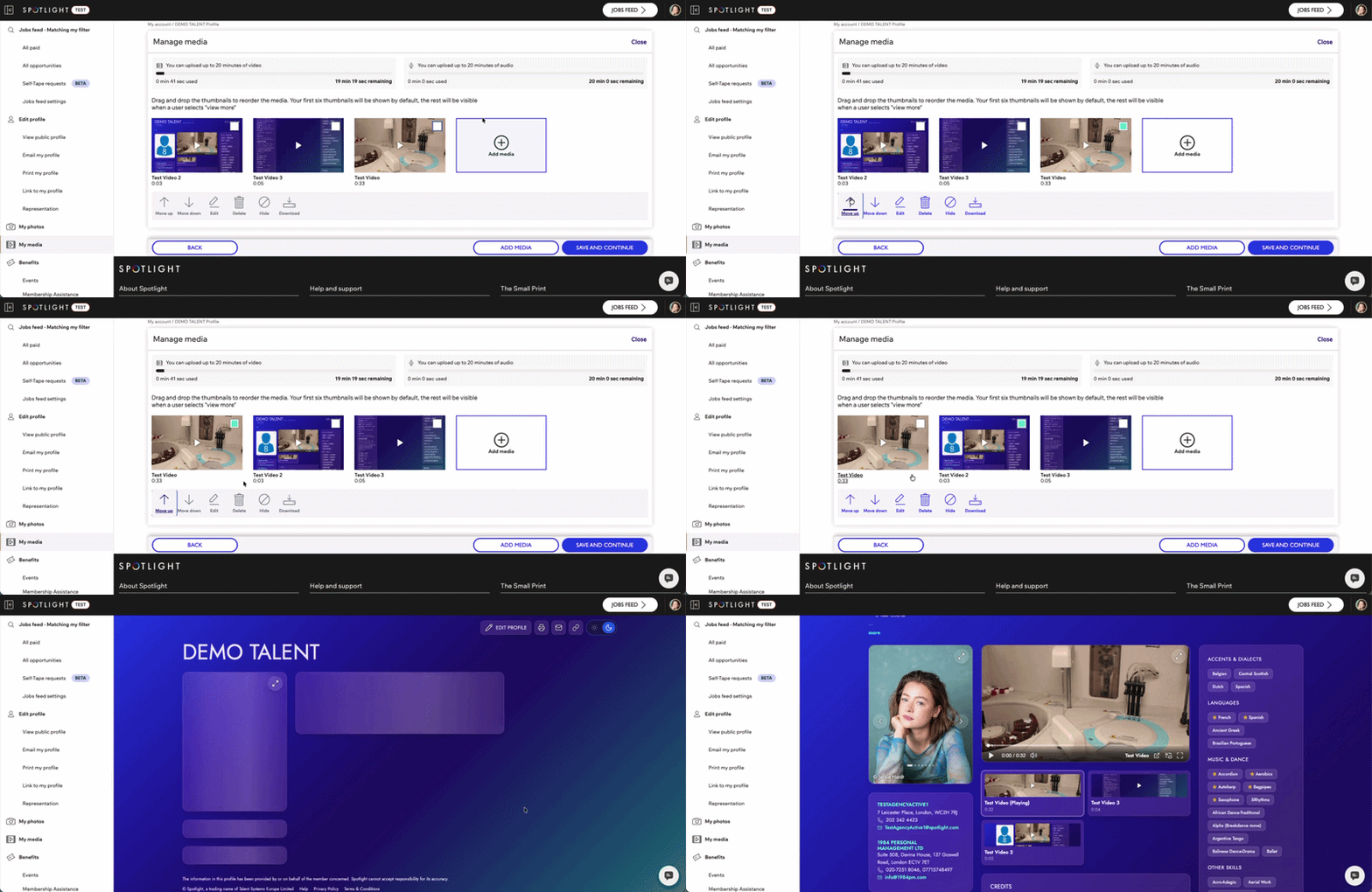
Select the box of the media you would like to move.
Select the Up or Down arrow in the icon bar in order to move the order of the media.
Select "Save and Continue" to view the changes on the profile.
*Important to note: Media must be rearranged individually. Select one media file you would like to move, once you are happy with the placement of the first media, deselect the box and select the box of the new media file you would like to move.
Common Upload Queries
Why is my upload taking so long? If your WiFi upload speed is slow, it may take some time. We recommend trying a different network if you experience delays.
What file formats are supported? Most popular video and audio formats are supported, including:
.AVI
.MP4
.WAV
.WEBM
.MOV
Apple ProRes
Is there a file size limit? A five-minute video should ideally be no larger than 350MB, though you can upload files up to 1GB.
How much media can I upload? You can currently upload up to 20 minutes of content in both the Video and Audio sections.