Performer Support: How do I Manage Credits and Headings?
This article provides step-by-step instructions for performers on how to organize, edit, and group credits on their Spotlight profile. Use these tools to ensure your professional experience is displayed clearly and accurately to casting directors.
ARTICLE CONTENTS
How to Edit Your Credits
Sign into your Spotlight account.
Select Edit Profile from the panel on the left-hand side of your welcome screen.
Locate the Credits area on your profile page.
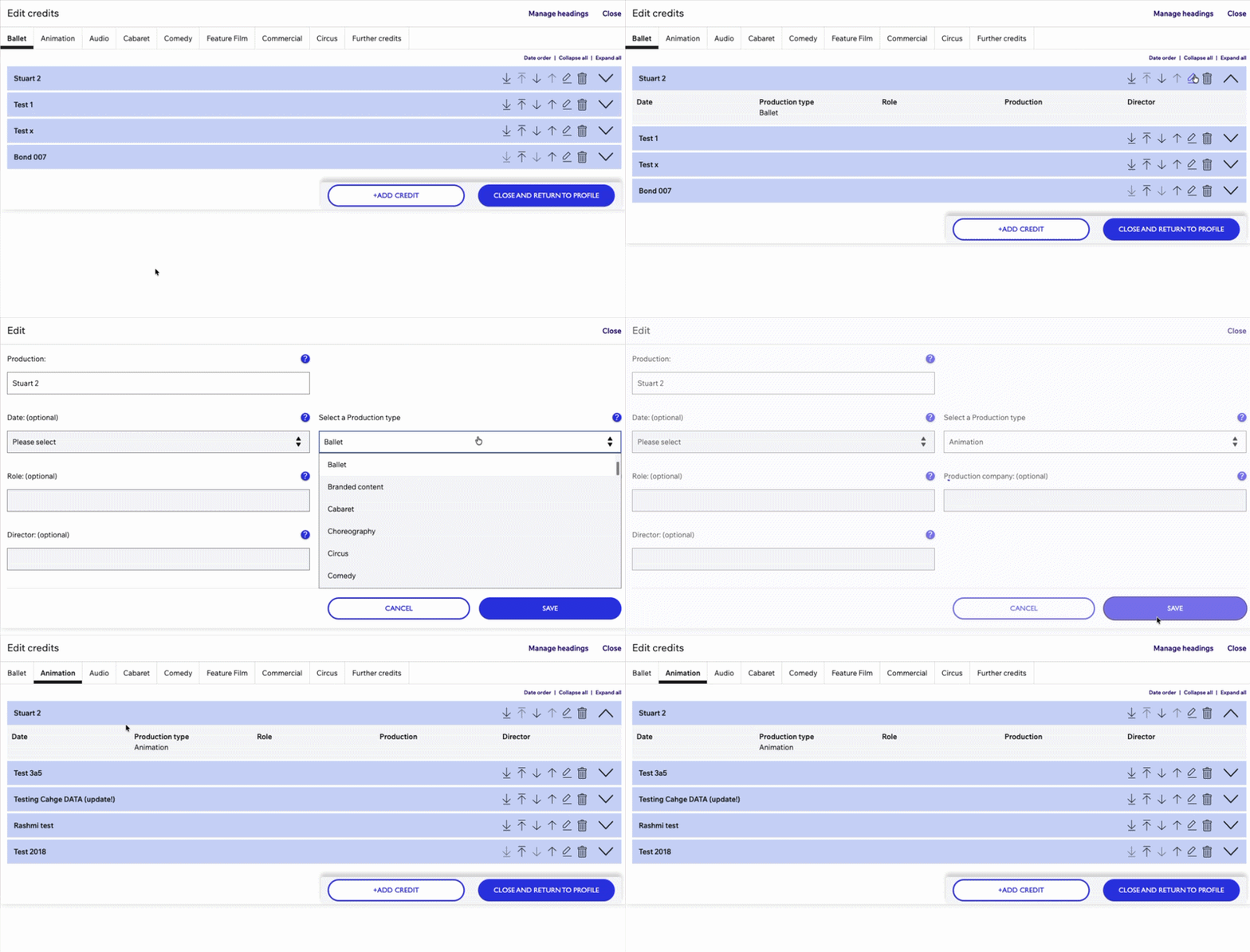
Select the pencil icon to the right of this area to enter the edit mode.
How to Manage Credit Headings
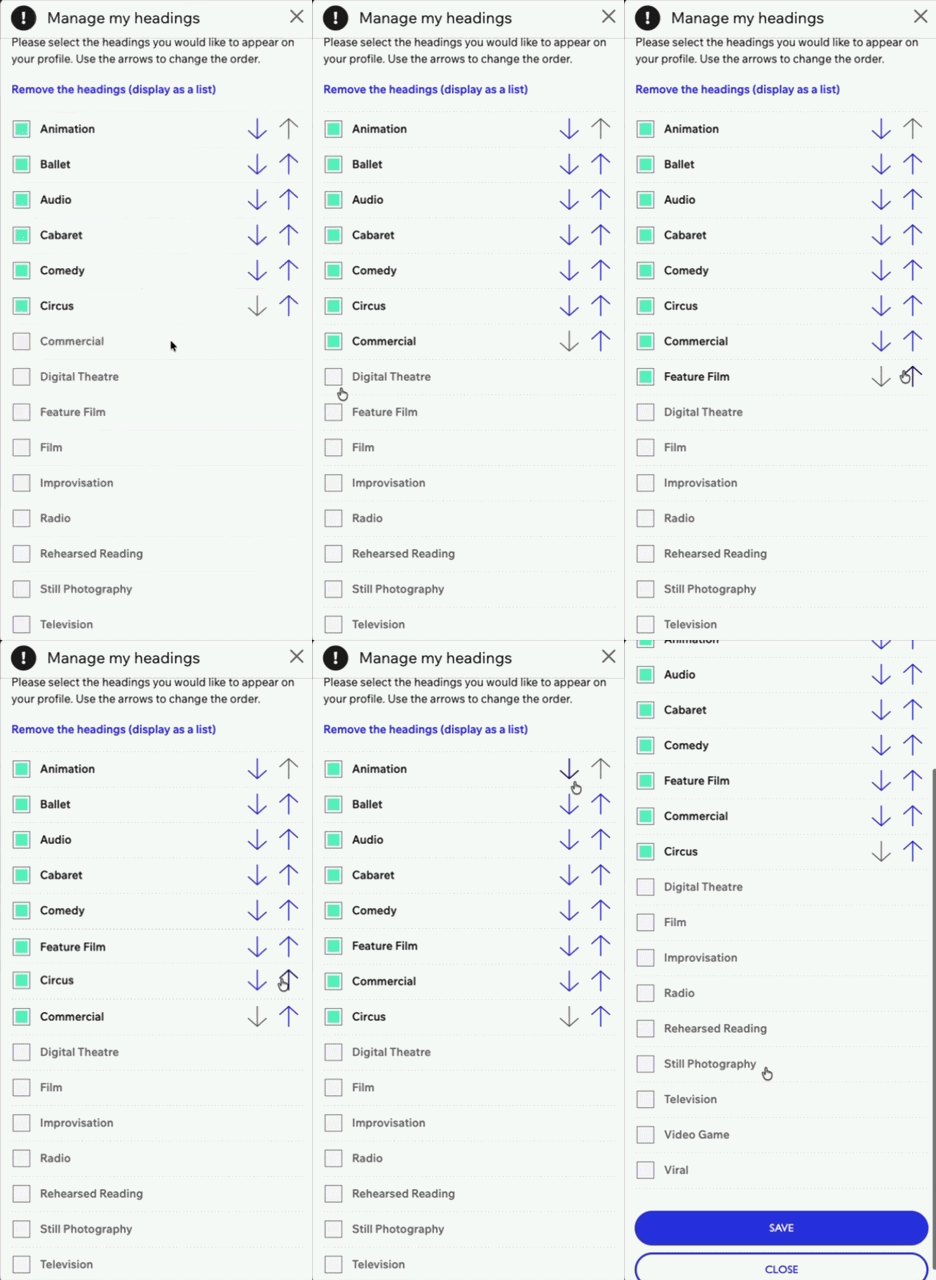
While in the credits editing area, select the Manage headings option.
To select a heading you would like to have displayed on your profile select the box to the left.
Use the arrows to the right in order to rearrange the order in which they appear.
Scroll to the bottom and select Save once you have confirmed your selection.
Understanding Automatic Heading Generation
Credit headings are automatically generated based on the production types you have listed within your individual credits.
If you wish to move a credit under a different heading, you must update the production type of that specific credit to match the desired category.